


Voice memos to text on iPhone
Saying a thought is faster than typing it. The hard part comes later: finding what you said. Here is how to get text from your voice on iPhone, and how to make it findable.
Recordings you already have: use Apple's apps
Recent versions of iOS can show a transcript for recordings in the Voice Memos app, and the Notes app can record audio and transcribe it, in the languages Apple supports. Open a recording and look for the transcript button. This is the simplest way to turn an existing voice memo into text, and it costs nothing. Reteum does not import recordings you made elsewhere.
New thoughts: speak into Reteum
- Hold the mic and talk; let go to save. The words appear as you speak, using Apple's speech recognition on the iPhone.
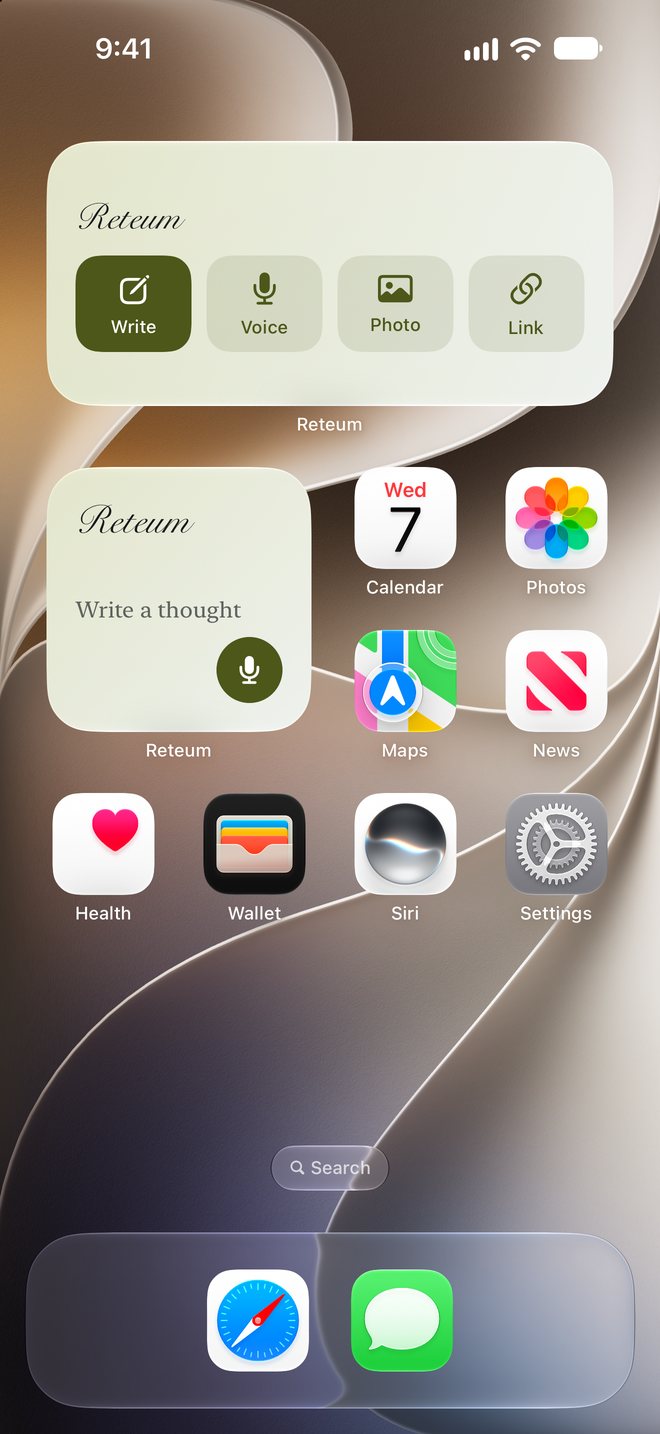
- Start from a Home Screen widget, the Lock Screen, Control Center or Siri: "Add a thought to Reteum."
- The words spoken in your videos become text too.
Why it matters: finding it again
A transcript only helps if you can find it. In Reteum, a spoken note sits with everything else you save and is searchable the moment you finish. Search by meaning, not exact words: "what I said about changing jobs" finds the note where you talked about a new offer. Older notes also come back on their own when you open the app, so ideas you spoke once do not vanish.
The best voice memo app for iPhone?
For recording long meetings or lectures to listen back to, Apple's Voice Memos is hard to beat. For short spoken thoughts you want to keep as searchable notes, Reteum is built for that: the transcription and the AI that searches it run on the phone, with no account and no server. More in a voice journal that listens on your iPhone.
See how Reteum works For iPhone with iOS 26 · 7 days free